

PC Thermal Throttling: How to Diagnose and Optimize Gaming Temps
Frame drops in the middle of a game do not always mean your graphics card is too slow. If performance starts strong and then gradually falls, your fans suddenly sound like they are preparing for takeoff, or CPU and GPU clock speeds drop during longer gaming sessions, heat may be the real problem.
PC thermal throttling occurs when a processor or graphics card approaches its designed thermal limit and automatically reduces frequency, voltage, or power to control temperature. It is a built-in protection system, not necessarily evidence that a component is failing.
The important part is figuring out whether your temperatures are simply high or whether they are actually reducing performance.
This guide explains how to monitor gaming PC temperatures, identify CPU or GPU thermal throttling, isolate airflow and cooler problems, and make practical changes that can improve both gaming performance and fan noise.
What Is PC Thermal Throttling?
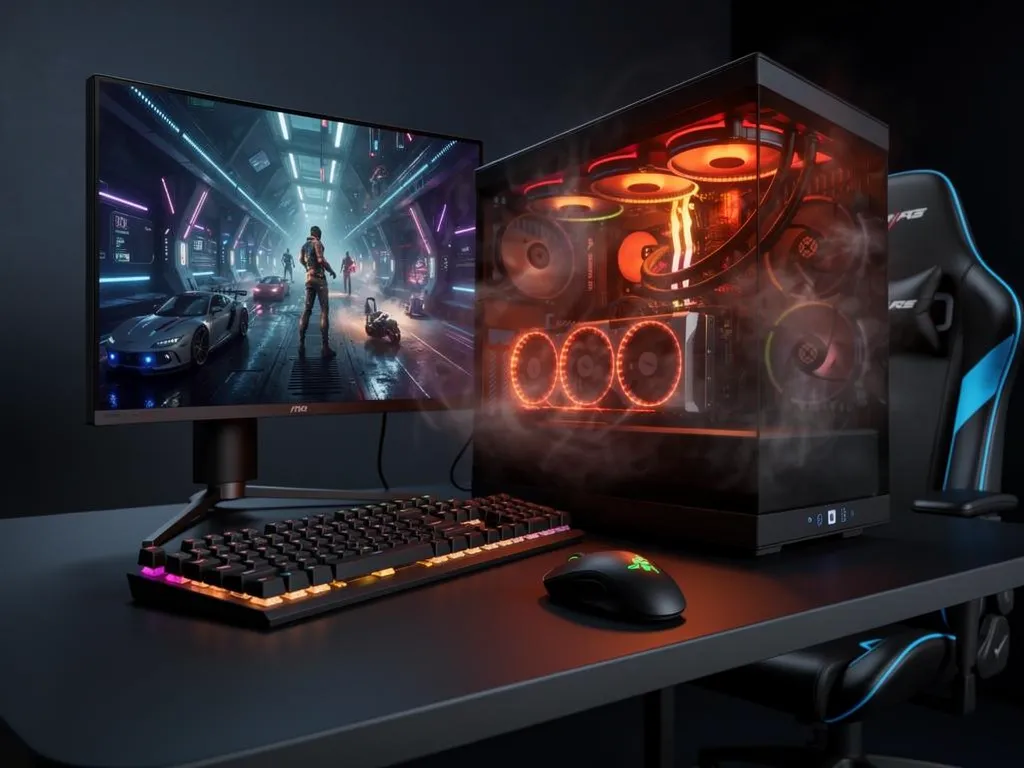
Modern CPUs and GPUs dynamically adjust their clock speeds based on workload, temperature, power consumption, and available electrical headroom.
As temperature rises toward the processor's maximum operating temperature, the hardware can begin reducing performance to prevent temperatures from continuing upward.
Intel describes thermal throttling as a protective mechanism that reduces CPU clock speed when the processor reaches its thermal limit. Intel processors can also shut themselves down if throttling cannot maintain a safe operating temperature.
AMD processors operate in a similar way. Technologies such as Precision Boost 2 continuously evaluate processor temperature, workload, power, current, and other conditions to determine how much frequency the CPU can safely sustain.
That means a high temperature reading by itself does not automatically mean your PC is thermal throttling.
You need to look at temperature, clock speed, power, utilization, and throttling indicators together.
Common Signs of Thermal Throttling
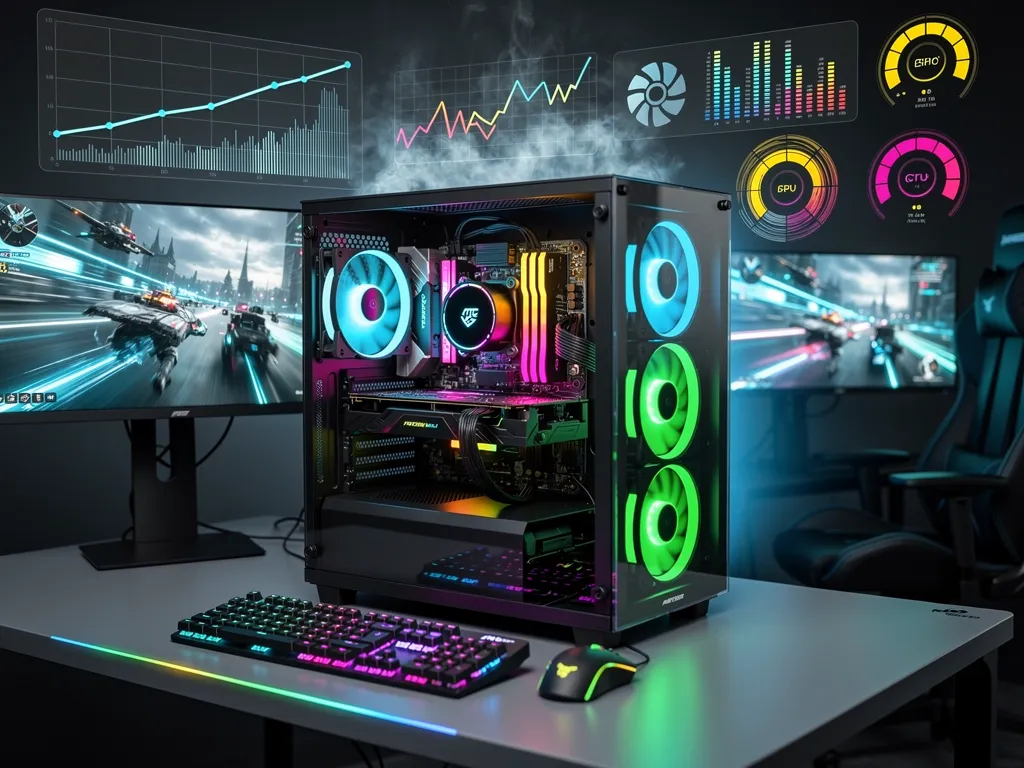
Possible symptoms include:
- FPS that starts high but decreases after several minutes of gaming
- Sudden frame-time spikes or recurring stutters
- CPU or GPU frequencies dropping under sustained load
- Fans repeatedly ramping to very high RPM
- Performance improving after the PC has cooled down
- Games running normally with the side panel removed but worse with the case closed
- CPU temperatures remaining at or near their thermal limit
- GPU temperature or hotspot temperature continually reaching its thermal target
- Unexpected shutdowns during heavy workloads
Intel specifically lists reduced CPU frequency, system slowdown, throttling, automatic shutdowns, and excessive fan noise among symptoms associated with overheating.
However, many of these symptoms can also be caused by driver problems, shader compilation, insufficient RAM or VRAM, background applications, power limits, unstable overclocks, or storage issues.
That is why diagnosis should come before replacing hardware.
What Temperature Is Too Hot for a Gaming PC in 2026?
There is no single universal "safe gaming temperature."
Different processors are designed around different thermal targets.
Intel itself does not publish one normal temperature range that applies to every processor. Instead, it recommends checking the maximum operating temperature, or Tjunction, for the exact CPU model. Depending on the processor, Intel says maximum junction temperature is commonly between approximately 100°C and 110°C.
Current AMD Ryzen processors can have different limits as well. For example, AMD specifies a 95°C Tjmax for both the Ryzen 7 9800X3D and Ryzen 9 9950X.
Current Intel processors can differ even within recent generations. Intel has confirmed a 105°C maximum operating temperature for the Core Ultra 7 265K, for example.
General Gaming Temperature Guidelines
| Component | What to Look For |
|---|---|
| CPU | Temperatures well below Tjmax with stable clocks are generally a good sign. Short spikes toward the thermal limit can occur on modern boosting CPUs. |
| CPU at Tjmax | Investigate if the CPU remains at its maximum temperature for extended periods and clock speeds or performance are falling. |
| NVIDIA GPU | Monitor GPU temperature alongside clocks, power and utilization. Current RTX 50 Series reference specifications can allow GPU temperatures up to approximately 90°C depending on model. |
| AMD Radeon GPU | Monitor both GPU temperature and GPU Junction or Hotspot Temperature. Hotspot readings are expected to be higher than the average GPU temperature. |
| SSD / VRM / Memory | These components have their own thermal limits and should not be judged using CPU or GPU temperature rules. |
For perspective, NVIDIA lists a 90°C maximum GPU temperature for the GeForce RTX 5090 Founders Edition, and its current GeForce comparison specifications show similar 90°C maximum GPU temperatures across multiple RTX 50 Series models.
The key takeaway is simple:
Do not diagnose thermal throttling from temperature alone. Look for a thermal limit being reached at the same time performance, clock speed, or power is being reduced.
Step 1: Monitor the Right Sensors
Before changing your cooling setup, collect data.
Useful monitoring tools include:
- HWiNFO
- Intel Extreme Tuning Utility for supported Intel CPUs
- AMD Ryzen Master
- AMD Software: Adrenalin Edition
- GPU monitoring utilities supplied by your graphics card manufacturer
HWiNFO is especially useful for detailed system troubleshooting because it exposes a large number of CPU, GPU, motherboard, fan, power, and thermal sensors.
As of August 2026, HWiNFO 8.52 also includes GPU hotspot reporting for NVIDIA Blackwell GPUs and expanded GDDR7 VRAM temperature monitoring, making it particularly useful for current-generation gaming PCs.
AMD Adrenalin can monitor and log metrics including GPU temperature, GPU Junction Temperature, GPU clocks, board power, fan speed, CPU temperature, CPU frequency, frame rate, frame time, and stutter rate.
Ryzen Master similarly exposes CPU temperature, peak clock speed, CPU power, PPT, TDC, EDC, and other processor telemetry.
Sensors Worth Watching
For CPU troubleshooting, monitor:
- CPU Package Temperature
- Core temperatures
- CPU clock frequency
- CPU package power
- CPU utilization
- Thermal throttling status
- Power-limit or current-limit indicators
For GPU troubleshooting, monitor:
- GPU Temperature
- GPU Hotspot / Junction Temperature
- GPU Clock
- GPU utilization
- GPU power
- GPU fan speed
- VRAM temperature when available
- FPS and frame time
Recording everything at once makes patterns much easier to spot.
Step 2: Reproduce the Problem
Do not judge your cooling system from a five-second temperature spike.
Instead, recreate the workload that causes the problem.
Launch the game where you normally experience frame drops and play under similar conditions for approximately 15 to 30 minutes while logging sensor information.
Watch what happens immediately before performance drops.
For example:
Temperature rises → CPU reaches thermal limit → clock frequency drops → FPS drops
That strongly points toward CPU thermal throttling.
Another example:
GPU reaches its thermal target → fan speed reaches maximum → GPU frequency decreases → frame time worsens
That suggests the graphics card may be thermally limited.
But:
GPU stays at 65°C → GPU utilization falls to 50% → FPS drops
That probably is not a GPU cooling problem. Something else is preventing the GPU from being fully utilized.
Step 3: Determine Whether It Is Thermal, Power, or Current Throttling
This distinction matters.
A processor can reduce frequency without overheating.
Intel XTU, for example, distinguishes between:
- Thermal Throttling
- Power Limit Throttling
- Current / EDP Limit Throttling
- Motherboard VR Thermal limits
A CPU hitting its configured power limit is not the same thing as a CPU overheating. Likewise, a motherboard voltage regulator hitting an electrical or thermal limit can restrict CPU performance even when CPU temperatures look acceptable.
If your monitoring utility says Thermal Throttling: Yes, investigate cooling.
If it says Power Limit Throttling, investigate CPU power limits, motherboard configuration, and cooling capacity before simply increasing those limits.
Increasing power limits can make the processor hotter, so raising them blindly can make an existing thermal problem worse.
Step 4: Test Your Case Airflow
One of the easiest diagnostic tests requires no new hardware.
Turn the PC off, remove the side panel, then repeat the same gaming test.
If CPU and GPU temperatures improve noticeably with the panel removed, your cooler may be working correctly but struggling to receive fresh air.
Possible airflow restrictions include:
- Dust-filled intake filters
- Blocked front panels
- Too few intake fans
- Incorrect fan direction
- Cables obstructing intake paths
- A radiator restricting intake airflow
- Exhaust fans fighting against intake fans
- The PC sitting against a wall or inside an enclosed cabinet
Removing the side panel is a diagnostic test, not a permanent cooling solution.
A properly configured case should move cool outside air toward the CPU and GPU while giving heated air an efficient path out of the chassis.
Intel's desktop thermal guidance emphasizes the same two fundamentals: a correctly mounted heatsink and effective airflow through the chassis.
Step 5: Check Fans and Liquid Cooling
If temperatures remain high even with good airflow, inspect the cooling hardware itself.
For Air Coolers
Check that:
- The CPU fan is spinning
- Fan speed increases with CPU temperature
- The heatsink is firmly mounted
- Dust is not packed between heatsink fins
- The cooler is appropriate for the processor's power requirements
For AIO Liquid Coolers
Check that:
- Radiator fans are operating
- The pump is receiving power
- Pump RPM is being reported when supported
- The correct motherboard fan or pump headers are being used
- Fan and pump curves have not accidentally been configured too conservatively
A pump failure can produce a very recognizable pattern: CPU temperatures climb extremely quickly while radiator fans are spinning normally.
Do not assume spinning fans mean the entire liquid cooler is working.
Step 6: Inspect Cooler Mounting and Thermal Paste
If airflow and fans look correct but CPU temperature climbs unusually quickly, cooler contact becomes a major suspect.
Poor contact between the CPU heat spreader and cooler can dramatically reduce heat transfer.
Possible causes include:
- Uneven mounting pressure
- A loose cooler
- Incorrect mounting hardware
- Protective film accidentally left on the cold plate
- Thermal paste that was improperly applied
- A cooler that was removed and reinstalled without replacing disturbed thermal compound
AMD recommends adequate thermal interface material, a properly mounted cooler, and sufficient cooler capacity as important factors in maintaining CPU performance.
You do not need an enormous amount of thermal paste.
The goal is simply to create a thin, consistent thermal interface that fills microscopic gaps between the CPU heat spreader and cooler.
If you remove the cooler during troubleshooting, clean the old compound and apply fresh thermal paste before reinstalling it.
Step 7: Check Fan Curves
A gaming PC can technically remain within specification while still being unnecessarily loud.
Aggressive fan curves often react instantly to brief CPU temperature spikes. The result is a system that repeatedly jumps between quiet and loud operation even though cooling performance barely changes.
A better curve usually allows fans to ramp progressively as temperatures increase.
For example, instead of sending every fan to high RPM whenever the CPU briefly spikes, chassis fans can respond more gradually while the CPU cooler handles short bursts.
Do not reduce fan speeds so aggressively that sustained temperatures increase significantly.
The goal is balance:
stable temperatures + stable clocks + reasonable acoustics
not simply the lowest temperature number possible.
Step 8: Return Overclocks to Stock Settings
If the PC recently started running hotter after BIOS changes, overclocking, Precision Boost Overdrive adjustments, voltage changes, or GPU tuning, return the system to a known stock configuration before troubleshooting further.
AMD specifically recommends testing temperature and performance problems from a stock configuration so custom settings do not distort the diagnosis.
This applies to GPUs too.
Reset custom:
- GPU voltage
- Core clocks
- Memory clocks
- Power limits
- CPU overclocks
- PBO settings
- Manual voltage settings
Then retest.
If the thermal problem disappears, gradually reintroduce your tuning until you identify the setting responsible.
Step 9: Consider Undervolting or Power Optimization
Once you know the cooling system itself is functioning correctly, reducing voltage or power can sometimes lower temperatures and fan noise without sacrificing meaningful gaming performance.
This is especially useful with high-performance CPUs and GPUs that operate close to their available thermal and electrical headroom.
AMD Software even provides automated undervolting functionality on supported Radeon GPUs.
However, undervolting should come after physical cooling issues have been ruled out.
Do not use an undervolt to hide:
- A failing AIO pump
- A badly mounted CPU cooler
- Dried or improperly applied thermal compound
- Blocked airflow
- Failed case fans
Fix the cooling problem first. Tune the system second.
CPU Temperature vs. GPU Hotspot Temperature
One of the most common mistakes when checking gaming PC temperatures is comparing different types of sensors as if they measure the same thing.
They do not.
A GPU's normal temperature sensor generally represents a broader GPU temperature measurement.
A GPU Hotspot or Junction Temperature reports the hottest sensor location detected on the GPU die.
That number can therefore be considerably higher.
AMD Software exposes both GPU Current Temperature and GPU Junction Temperature specifically so users can see this difference.
The same principle is becoming increasingly relevant on NVIDIA hardware as monitoring software gains access to additional hotspot and memory sensors.
So if your GPU reports:
GPU Temperature: 72°C GPU Hotspot: 88°C
do not automatically interpret the 88°C reading as though the entire GPU is running at 88°C.
Instead, compare each sensor against the specifications and normal behavior for that specific graphics card.
Why Your PC Can Be Hot Without Thermal Throttling
Modern processors are designed to use available performance headroom.
AMD Precision Boost 2 actively evaluates temperature, socket power, current, workload, and firmware limits to determine how aggressively Ryzen processors can boost.
Intel processors also continuously monitor temperature and dynamically adjust frequency and power. Intel notes that reaching or briefly approaching maximum operating temperature during a workload is not automatically cause for concern.
This is why the better question is not:
"Is 85°C bad?"
It is:
"At 85°C, is my processor still maintaining the performance it should?"
If the answer is yes, your cooling system may be working exactly as intended.
XOTIC PC Thermal Management and Gaming Performance
Good [XOTIC PC](https://xoticpc.com/pages/military-discount) thermal management starts with the same fundamentals that matter in any high-performance gaming system: selecting an appropriate cooler, maintaining strong chassis airflow, verifying fan operation, and testing the final system under sustained load.
Current XOTIC PC Optimized gaming desktops are designed around balanced CPU/GPU configurations and airflow-conscious layouts, followed by system validation and burn-in testing. XOTIC PC also currently uses OCCT testing to validate CPU, GPU, power, thermal, and system stability on its desktop systems before shipment.
For custom systems, cooling should also scale with the components being configured. A high-power processor and flagship GPU generate significantly more heat than an entry-level gaming system, so case airflow, radiator capacity, fan placement, and cooler selection should be considered as part of the complete configuration rather than as individual parts.
XOTIC PC's current PC Builder reflects that approach by allowing cooling and airflow options to be configured alongside the CPU, GPU, memory, storage, and other performance components.
Quick Thermal Throttling Checklist
If you suspect PC thermal throttling, work through this order:
- Monitor CPU and GPU temperatures, clocks, power, utilization, and fan speed.
- Reproduce the issue during an actual gaming workload.
- Confirm whether a thermal throttling flag appears.
- Check whether clocks drop when temperature reaches the component's thermal limit.
- Test the PC briefly with the side panel removed.
- Clean dust filters, fans, heatsinks, and radiators.
- Verify fan direction and case airflow.
- Confirm CPU cooler mounting and AIO pump operation.
- Replace thermal paste if cooler contact appears questionable.
- Return CPU and GPU tuning to stock settings.
- Adjust fan curves if temperatures are acceptable but acoustics are excessive.
- Only consider undervolting or advanced tuning after the cooling hardware has been verified.
When Should You Be Concerned?
High temperatures deserve closer attention when they are accompanied by:
- Sustained thermal throttling
- Continually reduced clock speeds
- Severe FPS degradation
- Fans remaining at maximum speed
- Temperatures immediately reaching the processor's thermal limit
- Unexpected shutdowns
- Pump or fan RPM disappearing
- Temperatures that have become significantly worse over time
A short spike to a high temperature is very different from a CPU sitting at its thermal limit throughout an ordinary gaming session.
Likewise, a GPU running warmer in a demanding 4K game does not automatically indicate a cooling failure.
The goal is not to chase the lowest possible temperature.
The goal is to keep your gaming PC operating within its designed limits while maintaining the clock speeds, frame rates, stability, and acoustics you expect.
Final Takeaway

PC thermal throttling is best diagnosed through behavior, not temperature alone.
Monitor temperature alongside clock speed, power, utilization, fan speed, and actual game performance. If temperatures rise and clocks fall at the same time, then start working through airflow, fans, cooler mounting, thermal paste, and system configuration.
Modern gaming hardware is designed to intelligently use available thermal headroom. A warm CPU or GPU is not necessarily an unhealthy one.
But when heat begins taking FPS away from you, that is when it is time to investigate.
Sources & Further Reading
Sources & Further Reading
- Intel — CPU thermal throttling behavior, maximum junction temperature (Tjunction) guidance, and desktop thermal design fundamentals: intel.com
- AMD — Precision Boost 2 behavior, Ryzen 7 9800X3D and Ryzen 9 9950X Tjmax specifications, and Radeon Software undervolting/thermal features: amd.com
- NVIDIA — GeForce RTX 50 Series Founders Edition and reference GPU maximum temperature specifications: nvidia.com
- HWiNFO — sensor monitoring release notes, including GPU hotspot reporting and GDDR7 VRAM temperature monitoring: hwinfo.com